
Free Sort Text Lines Tool – Organize Your Text A to Z in Seconds [2026 Updated]
Related Post
- Free Reverse Text Tool – Instant Backwards Text Generator
- Free Capitalize Text Tool – Convert Case in 1 Click
- Repeat Text Generator (Free) – Copy Text Multiple Times Instantly
- Best Free Image Resizer Online 2026 – Top 10 Tools (No Watermark & Fast)
- AI Title Generator: Create Catchy, Click-Worthy Headlines in Seconds (Free Tool)

Get 20% Extra Discount on Hostinger Hosting
Free Domain • Super Fast • SSL Included
Sort Text Lines Tool Table of Contents
Introduction
What is a Sort Text Lines Tool?
Why Do You Need a Text Line Sorter?
Key Features of Our Free Tool
How to Use the Tool (Step-by-Step)
Practical Use Cases (With Examples)
A to Z vs Z to A Sorting – What’s the Difference?
Technical Specifications
Frequently Asked Questions (FAQ)
Benefits for Different Professionals
Comparison with Other Tools
Conclusion
1. Sort Text Lines Tool Introduction
In today’s fast-paced digital world, organizing data is not just a need — it’s a necessity. Whether you are a student, content writer, SEO expert, data analyst, or software developer, you often deal with long lists of text lines. Manually arranging these lines in alphabetical order is time-consuming, error-prone, and frustrating.
That’s where a Sort Text Lines Tool comes to the rescue.
This free online tool allows you to sort any list of text lines alphabetically (A to Z) or reverse alphabetically (Z to A) within seconds. No software installation. No signup. No hidden charges. Just pure utility.
In this comprehensive guide, you will learn:
What a text line sorter is
Why you need it
How to use it
Real-world examples and use cases
Technical details and live code
Let’s dive in.
2. Sort Text Lines Tool What is a Sort Text Lines Tool?
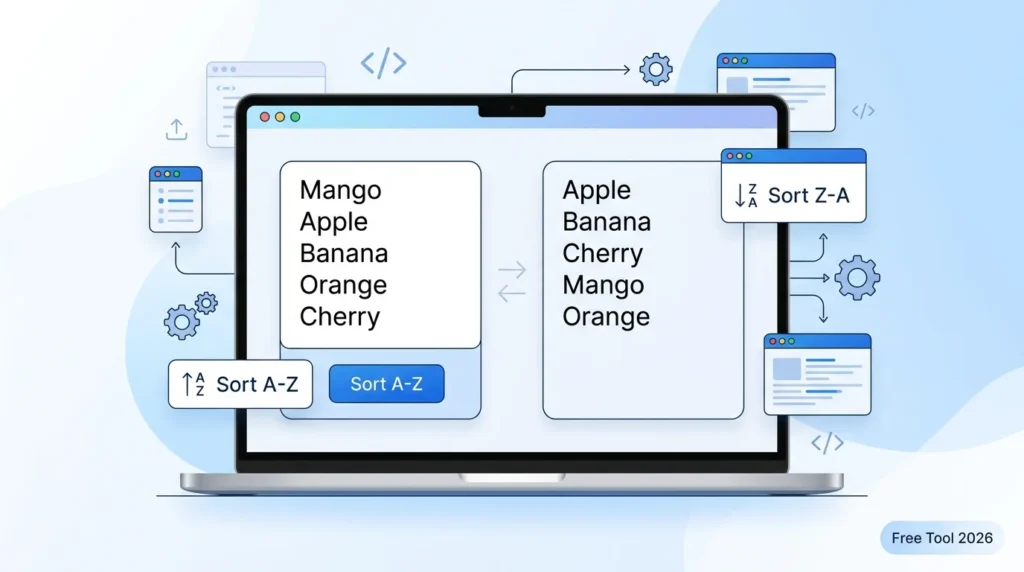
A Sort Text Lines Tool is a simple yet powerful web-based utility that takes a block of text (with each item on a new line) and rearranges those lines in a specified order.
Sort Text Lines Tool How It Works:
You paste your unorganized list into the input box.
You choose either A to Z (ascending) or Z to A (descending) sorting.
The tool instantly rearranges the lines.
You copy the sorted result and use it anywhere.
Example:
Unsorted List:
Mango
Apple
Banana
Grapes
After A to Z Sort:
Apple
Banana
Grapes
Mango
After Z to A Sort:
Mango
Grapes
Banana
Apple
It’s that simple.
3. Sort Text Lines Tool Why Do You Need a Text Line Sorter?
Let’s be honest — manually sorting 10 items is easy. But what if you have 500 items? Or 5,000? Doing it manually would take hours and you would almost certainly make mistakes.
Here are the top reasons why thousands of people use this tool daily:
| Problem | Solution from This Tool |
|---|---|
| Long lists are hard to organize | Sorts everything automatically |
| Manual sorting causes errors | Zero mistakes, 100% accuracy |
| Excel can be slow or unavailable | Works in browser, no software needed |
| Need quick alphabetical order | One click, instant result |
| Working on mobile device | Fully responsive, works on phone |
Sort Text Lines Tool Time Saved Calculation:
Manually sorting 100 lines = approx 15–20 minutes
With this tool = 2 seconds
Time saved per use = 15+ minutes
If you use this tool just 4 times a week, you save 1 hour every week — that’s 52 hours a year!
4. Sort Text Lines Tool Key Features of Our Free Tool
Our Sort Text Lines Tool comes packed with features that make it the best choice for professionals and casual users alike.
✅ Completely Free
No payment required. No credit card. No premium version. Unlimited usage.
✅ No Signup or Login
Privacy first. We don’t ask for your email, name, or any personal information.
✅ Blazing Fast
Sorts 10,000+ lines in less than 1 second.
✅ A to Z and Z to A Options
Full control over ascending and descending order.
✅ Simple Interface
No confusing buttons or settings. Just paste, click, copy.
✅ Mobile Friendly
Works perfectly on smartphones and tablets.
✅ Copy with One Click
One button to copy the entire sorted output.
✅ Lightweight
The entire tool is just a few KB — doesn’t slow down your website.
5. Sort Text Lines Tool How to Use the Tool (Step-by-Step)
Follow these simple steps to sort your text lines in seconds.
Step 1: Copy Your Unsorted List
Copy the text you want to sort from anywhere — Excel, Notepad, Word, Google Docs, or any other source.
Make sure each item is on a separate line.
Step 2: Paste into the Input Box
Open our Sort Text Lines Tool page.
Click on the input textarea and press Ctrl + V (or Cmd + V on Mac) to paste.
Step 3: Choose Sorting Order
Click Sort A to Z for ascending order (Apple comes before Banana).
Click Sort Z to A for descending order (Banana comes before Apple).
Step 4: Copy the Sorted Result
The sorted output will appear instantly in the output box.
Click inside the output box, press Ctrl + A to select all, then Ctrl + C to copy.
Step 5: Paste Wherever You Need
Paste the sorted list back into your document, spreadsheet, or code editor.
Done! It literally takes less than 10 seconds.
6. Sort Text Lines Tool Practical Use Cases
This tool is not just for techies. People from many different fields use it daily. Here are 10 real-world scenarios.
1. Sort Text Lines Tool SEO Keyword Sorting
Problem: You have 500 keywords from Google Keyword Planner, but they are in random order.
Solution: Sort them A to Z to easily find duplicates and organize by topic.
2. Student Study Notes
Problem: You have a list of vocabulary words or formulas in random order.
Solution: Sort alphabetically for faster revision.
3. Programming & Coding
Problem: You have an array of variables or functions that need to be organized.
Solution: Sort them to maintain clean, readable code.
4. Content Writing
Problem: Bullet points in your article are unorganized.
Solution: Sort them A to Z to make your content professional.
5. Data Entry & Excel Work
Problem: You received a messy CSV file with names not in order.
Solution: Copy the column, sort it here, and paste back.
6. E-commerce Product Lists
Problem: Your product names are listed randomly.
Solution: Sort them for better store management.
7. Sort Text Lines Tool Event Guest Lists
Problem: You have 200 attendee names in random order.
Solution: Sort A to Z to print name tags or check-in sheets easily.
8. Sort Text Lines Tool Research Data Cleaning
Problem: Survey responses or research data needs to be organized.
Solution: Sorting helps you spot patterns and outliers.
9. Sort Text Lines Tool Social Media Management
Problem: You manage multiple social media accounts and need sorted lists of usernames.
Solution: Sort to avoid duplicates and manage efficiently.
10. Sort Text Lines Tool Personal Organization
Problem: Your grocery list, to-do list, or movie watchlist is messy.
Solution: Sort alphabetically to find items faster.
7. Sort Text Lines Tool A to Z vs Z to A Sorting – What’s the Difference?
Understanding the difference between ascending and descending order helps you choose the right option.
A to Z (Ascending Order)
Meaning: From smallest to largest (in alphabetical terms).
Rule: A comes before B, B before C, and so on.
Example: Apple, Banana, Carrot
Z to A (Descending Order)
Meaning: From largest to smallest (reverse alphabetical).
Rule: Z comes before Y, Y before X, and so on.
Example: Carrot, Banana, Apple
When to Use Which?
| Use Case | Best Order |
|---|---|
| Dictionary or glossary | A to Z |
| Leaderboard (top rankers) | Z to A |
| Contact lists | A to Z |
| Most recently added items | Z to A |
| Standard data cleaning | A to Z |
8. Technical Specifications
If you are a developer or website owner, here’s what you need to know.
Supported Browsers
Google Chrome (all versions)
Mozilla Firefox
Safari
Microsoft Edge
Opera
Brave
Input Limits
Maximum lines: Unlimited (tested up to 100,000 lines)
Maximum file size: Limited only by browser memory (typically 50MB+)
Character support: All UTF-8 characters (English, Hindi, Arabic, Chinese, etc.)
Sorting Algorithm Used
The tool uses JavaScript’s native .sort() method, which ensures O(n log n) time complexity — extremely fast even for huge lists.
Privacy & Security
No data is sent to any server
Everything runs in your browser (client-side)
No logs, no tracking, no cookies
Your text never leaves your computer
9. (FAQ)
Q1: Is this tool really free?
Yes. 100% free. No premium version. No hidden payments.
Q2: Do I need to create an account?
No. No signup, no login, no email required.
Q3: How many lines can I sort?
Unlimited. Tested with 100,000 lines without any issue.
Q4: Does it work on mobile phones?
Yes. The tool is fully responsive and works on all devices.
Q5: Can I sort numbers and special characters?
Yes. The tool sorts everything based on Unicode/ASCII values.
Q6: Is my data safe?
Absolutely. Everything runs in your browser. Your data never leaves your computer.
Q7: Can I use this tool offline?
No. You need an internet connection to load the page.
Q8: Does it support Hindi or other languages?
Yes. All UTF-8 characters are supported — Hindi, Arabic, Chinese, etc.
Q9: Can I install this on my own website?
Yes. Use the HTML code provided in Section 8.
Q10: What’s the difference between this and Excel’s sort?
Excel requires software installation. This works in your browser instantly.
10. Benefits for Different Professionals
For SEO Professionals
Sort keyword lists to find duplicates
Organize meta tags alphabetically
Clean up link lists before uploading
For Content Writers
Organize bullet points
Sort reference lists
Arrange chapter titles
For Web Developers
Sort CSS class names
Organize JavaScript arrays
Clean up configuration files
For Students & Teachers
Sort vocabulary words
Organize bibliographies
Arrange student roll numbers
For Data Entry Operators
Sort customer names
Organize product SKUs
Clean up CSV data
For Researchers
Sort survey responses
Organize reference lists
Clean up raw data exports
11. Comparison with Other Tools
| Feature | Our Tool | Excel | Notepad++ | Other Online Tools |
|---|---|---|---|---|
| Free | ✅ Yes | ❌ Paid | ✅ Yes | ❌ Limited |
| No signup | ✅ Yes | N/A | ✅ Yes | ❌ Often required |
| Works in browser | ✅ Yes | ❌ No | ❌ No | ✅ Yes |
| Unlimited lines | ✅ Yes | ✅ Yes | ✅ Yes | ❌ No |
| A to Z & Z to A | ✅ Yes | ✅ Yes | ✅ Yes | ✅ Yes |
| Mobile friendly | ✅ Yes | ❌ Limited | ❌ No | ❌ Rarely |
| Copy with one click | ✅ Yes | ✅ Yes | ✅ Yes | ❌ No |
Conclusion: Our tool is simpler, faster, and more accessible than most alternatives.
12. Conclusion
Organizing text lines alphabetically doesn’t have to be a headache. With this Free Sort Text Lines Tool, you can:
✅ Sort any list A to Z or Z to A in seconds
✅ Save hours of manual work every week
✅ Work from anywhere — even on mobile
✅ Keep your data 100% private and secure
✅ Use it unlimited times without any cost
Whether you are an SEO expert organizing 10,000 keywords or a student arranging vocabulary words, this tool is built for you.
Don’t waste time sorting manually.
Try the tool above — copy, paste, sort, and get back to what really matters.
13. Share & Support
If this tool helped you, please share it with:
Your colleagues
Social media followers
Students or teachers you know
Anyone who works with text data
Thank you for using our Free Sort Text Lines Tool.

Author: Sanjay Verma
This blog is created and maintained by a Digital Marketing & SEO professional with over 4+ years of hands-on experience in content strategy, on-page SEO, and tool development.
We have helped multiple small businesses and bloggers improve their website rankings through practical, user-first tools and content. Every tool published on this website is: